

How to install IPTV on IBO Player
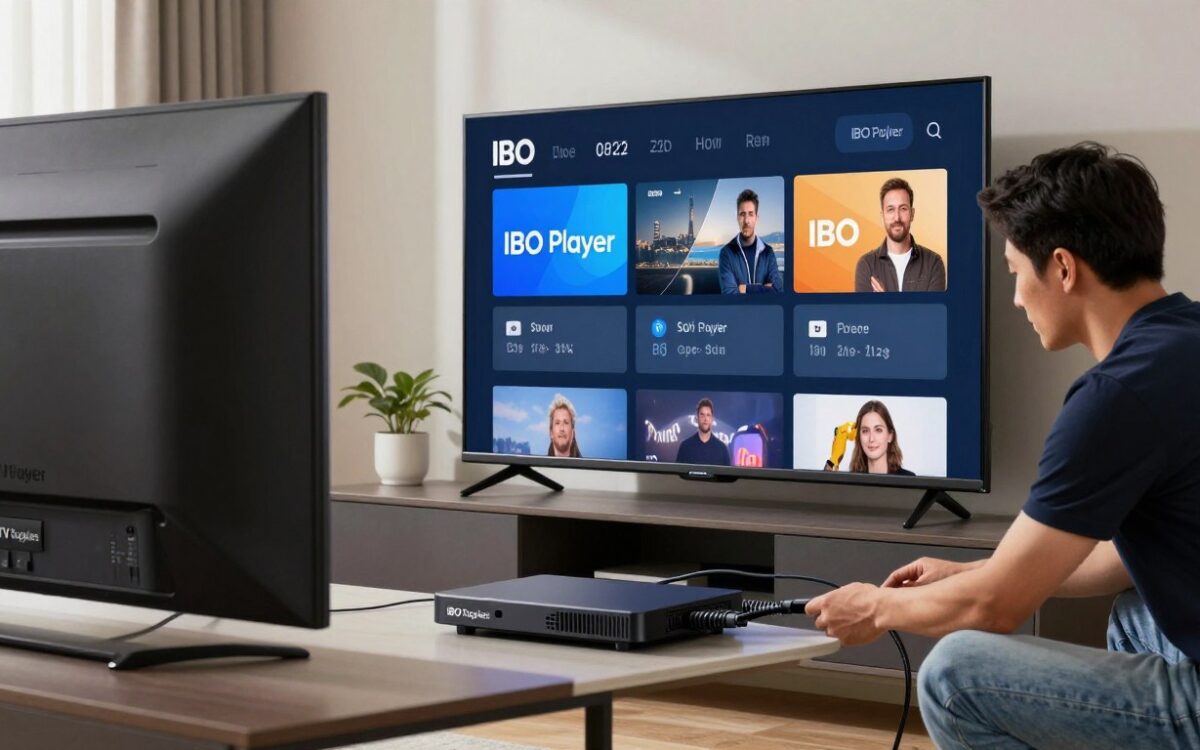
Setting up IPTV installation on your device is easy with the right help. In Canada, many people choose IPTV for its wide range of channels and content.
Using the IBO Player setup makes watching your favorite shows and sports easy. This guide will help you start with Canadian IPTV services.
The steps are simple, so you can start streaming your favorite content fast. By following this article, you’ll enjoy a smooth viewing experience.
Understanding IBO Player and IPTV Services
To enjoy IPTV fully, knowing about IBO Player is key. It’s a top media player for streaming IPTV services. It’s essential for Canadians wanting to watch a wide variety of channels and content.
What is IBO Player?
IBO Player is a flexible media player for IPTV streaming. It works on many devices like Android, iOS, Smart TVs, and Windows/Mac computers. This makes it easy for users on different platforms.
Benefits of Using IBO Player for IPTV
Using IBO Player for IPTV brings many IPTV benefits. It has a simple interface, works on many devices, and lets you customize your viewing. It also supports various IPTV protocols for a stable, high-quality stream.
Legal Considerations for IPTV in Canada
When using IPTV services in Canada, knowing the Canadian IPTV laws is vital. Canadians must get their IPTV from authorized providers to follow copyright laws and avoid legal trouble.
It’s important to understand these legal points for a smooth IPTV experience.
Requirements Before Installation
To enjoy IPTV on IBO Player, you need to meet some basic requirements. Make sure your device and internet connection are compatible. This ensures a smooth installation process.
Compatible Devices
IBO Player works with many devices. This includes Android and iOS devices, Smart TVs, and Windows/Mac computers. Before you start, check if your device meets IBO Player’s minimum system requirements.
Internet Connection Requirements
You need a stable internet connection for IPTV streaming. For SD channels, a 5 Mbps speed is recommended. HD channels need at least 10 Mbps. For the best experience, a faster connection is better.
Necessary Subscriptions
You’ll need an IPTV subscription to use IBO Player. Choose a good provider with lots of channels and reliable streaming.
VPN Considerations for Canadian Users
Canadian users might want to use a VPN for IPTV streaming. A VPN keeps your streaming private and secure. It also helps bypass geo-restrictions.
Downloading and Installing IBO Player
To start enjoying IPTV on your device, you first need to download and install IBO Player. The process is easy and depends on your device.
Installation on Android Devices
For Android devices, download IBO Player from the Google Play Store. Just search for “IBO Player,” click install, and wait for it to download and install.
- Open Google Play Store
- Search for “IBO Player”
- Click Install
Installation on iOS Devices
On iOS devices, find IBO Player in the App Store. Search for it and follow the prompts to install.
- Open App Store
- Search for “IBO Player”
- Tap Get to download
Installation on Smart TVs
For Smart TVs, the installation process varies by brand and operating system. Usually, you can find IBO Player in your TV’s app store.
Installation on Windows/Mac
To install IBO Player on Windows or Mac, visit the official IBO Player website. Download the installer and follow the on-screen instructions to install.
- Visit the official IBO Player website
- Download the installer for your operating system
- Run the installer and follow the prompts
After installing, launch IBO Player and start setting it up to enjoy your IPTV services.
Setting Up IPTV on IBO Player
To enjoy IPTV on IBO Player, start by setting up your account. Get familiar with the interface and adjust the settings. This makes it easy to find channels and content you like.
Creating an Account
First, create an account on IBO Player. You’ll need to give some basic info and pick a subscription plan. Make sure you have a good internet connection and follow the instructions to register.
Navigating the Interface
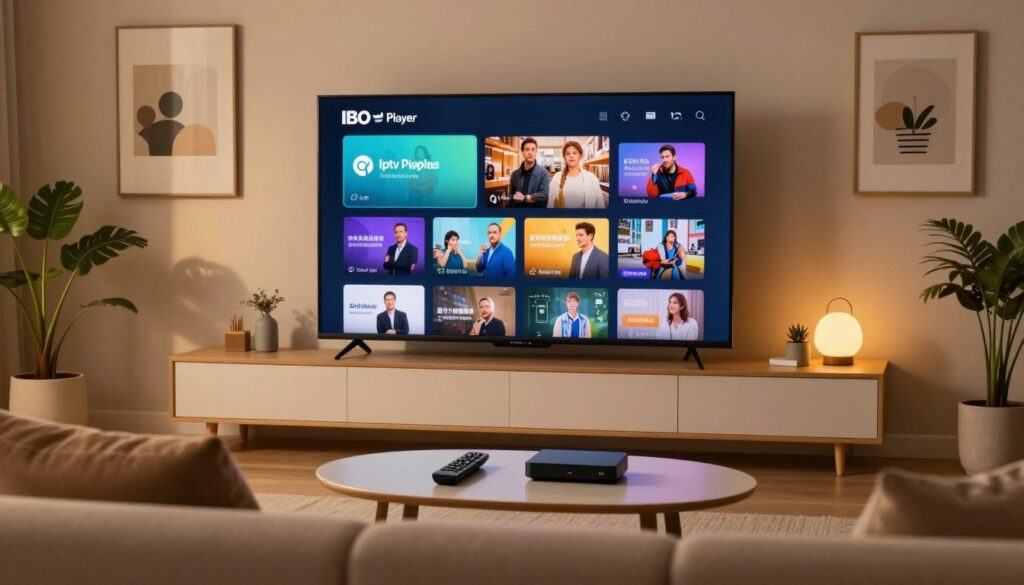
After setting up your account, explore the IBO Player interface. It’s easy to use, with clear categories for different content. You can quickly switch between live TV, movies, and series.
Basic Configuration Settings
Adjusting the basic settings on IBO Player is key for a great viewing experience. You can change video quality, set parental controls, and pick your audio language. Find these options in the ‘Settings’ or ‘Preferences’ menu.
Language and Region Settings for Canadian Users
Canadian users need to set their language and region settings. IBO Player lets you choose your language and region. This ensures you get local news, sports, and entertainment.
By following these steps, you can enjoy IPTV on IBO Player. You’ll get content that fits your preferences and location.
Methods to Add IPTV on IBO Player
Adding IPTV to IBO Player is easy and flexible. You can stream your favorite channels or explore a vast content library. IBO Player offers various ways to set up IPTV, meeting your needs.
Using M3U URL Method
The M3U URL method is a favorite for setting up IPTV on IBO Player. You get an M3U URL from your IPTV provider and add it to the player.
Obtaining Your M3U URL
To begin, get your M3U URL from your IPTV provider. This URL is in your service confirmation email or account settings. Make sure it’s valid and active to avoid streaming problems.
Adding the URL to IBO Player
With your M3U URL ready, here’s how to add it to IBO Player:
- Open IBO Player and go to the settings or configuration section.
- Choose to add a new IPTV source or playlist.
- Put your M3U URL in the field and confirm.
- Wait for the player to load the channels from the M3U URL.
Using Xtream Codes Method
Another way to set up IPTV on IBO Player is with Xtream Codes. You need an Xtream Codes account and login details.
Finding Your Xtream Codes
To use Xtream Codes, find your credentials. These include a username and password from your IPTV provider.
Configuring Xtream Codes in IBO Player
With your Xtream Codes credentials, follow these steps:
- Go to the Xtream Codes configuration in IBO Player.
- Enter your Xtream Codes username and password in the fields.
- Save your settings and let the player sync with the Xtream Codes server.
- Explore the available channels and start streaming.
Using Local Playlist Files
For a local approach, IBO Player supports local playlist files. Download an M3U file from your IPTV provider and import it into the player.
To use a local playlist file, download the M3U file to your device. Then, use IBO Player’s import feature to load it. This method is great for those with limited internet or who like to manage playlists locally.
By using these methods, you can easily set up IPTV on IBO Player. Enjoy a wide range of channels and content. Whether you pick the M3U URL, Xtream Codes, or local playlist method, IBO Player’s easy interface makes it simple to start.
Customizing Your IPTV Experience on IBO Player
IBO Player lets you make your IPTV experience your own. It’s all about making your favourite channels and shows easy to find. You can choose how you want to see them.
Organizing Channels and Categories
Start by organizing your channels and categories. IBO Player helps you sort them into groups. This makes finding your favourite shows a breeze.
Setting Up Favourites
Adding your favourite channels to a list is a great idea. It lets you quickly find them without searching through everything. It’s perfect for families with different tastes.
Adjusting Playback Settings
IBO Player lets you tweak playback settings. You can adjust buffer size, aspect ratio, and audio. This ensures your videos play smoothly.
Customizing the User Interface
You can also change how IBO Player looks. Adjust the layout, font size, and more. This makes it easier to use and more fun.
Setting Up Canadian Channels
Canadian users will want to add Canadian channels. IBO Player supports adding them via M3U URLs and Xtream Codes. This is key for watching local content and sports.
Advanced Features of IPTV on IBO Player
Discover the full power of IPTV with IBO Player’s advanced features. These features boost your viewing experience. They give you more control and flexibility over your IPTV content.
EPG (Electronic Program Guide) Setup
The EPG setup on IBO Player lets you see a detailed schedule of upcoming shows. It’s great for planning your TV time ahead. To set it up, go to the settings menu, choose “EPG Settings,” and follow the instructions to pick your EPG source.
Recording Live TV
Recording live TV is easy with IBO Player. It lets you save your favorite shows or events for later. To record, just press the record button on your remote during the show you want to save.
Time-Shifting Features
Time-shifting is a key feature of IBO Player. It lets you pause, rewind, or fast-forward live TV. It’s handy if you need to leave during a show or want to watch a segment again.
Multi-Screen Viewing
IBO Player is great for households with many screens. Its multi-screen viewing lets you watch different shows on different devices at the same time. It makes watching TV better for everyone.
Parental Controls
IBO Player has strong parental controls for a safe viewing environment. These controls let you block certain channels or content based on ratings or categories. They help keep your viewing safe for kids.
Using these advanced features, you can make your IPTV experience on IBO Player better. It becomes more enjoyable, convenient, and fits your needs perfectly.
Troubleshooting Common IPTV Issues on IBO Player
Fixing IPTV problems on IBO Player needs a step-by-step approach. Users face many issues, but knowing the causes and fixes helps. This way, you can enjoy your shows without interruptions.
Buffering Problems
Buffering is a common issue with IPTV on IBO Player. It usually happens when your internet is slow or the server is too busy.
- Make sure your internet speed is good enough for streaming.
- Try restarting your router to refresh your connection.
- If problems continue, try a different server or provider.
Channel Loading Errors
Channel loading errors can be annoying, but they’re often simple to solve.
- Check if your IPTV subscription is active and you have the right channel list.
- Update IBO Player to the newest version.
- Clear the app’s cache and data to remove bad files.
EPG Not Working
The Electronic Program Guide (EPG) is key for IPTV users. If it’s not working, here’s what to do:
- Make sure your EPG settings are right in IBO Player.
- Update your EPG data by refreshing the guide.
- If problems keep happening, reach out to your IPTV provider.
Audio/Video Sync Issues
Audio and video sync problems can ruin your viewing. Here’s how to fix it:
- Check that your audio and video settings are correct.
- Adjust the audio delay in IBO Player.
- Make sure your device’s firmware is current.
Connection Problems with Canadian ISPs
Some Canadian ISPs might have rules that affect IPTV. Here’s what to do:
- Ask your ISP if they support IPTV streaming.
- Use a VPN if your ISP slows down IPTV.
- Get help from your IPTV provider for ISP issues.
By following these steps, you can fix common IPTV problems on IBO Player. This way, you can enjoy your shows without any trouble.
Maintaining and Updating Your IPTV on IBO Player
Keeping your IPTV on IBO Player up to date is key for the best performance. It involves a few important steps.
Keeping IBO Player Updated
To ensure your IBO Player works well, update the app regularly. Updates bring bug fixes, new features, and better performance. You can find updates in your device’s app store or on the IBO Player website.
Managing IPTV Subscription Renewals
It’s important to manage your IPTV subscription to avoid any service breaks. Track your renewal dates and renew before it’s too late. Most services send reminders, but setting your own is a good idea too.
Backing Up Your Settings
Backing up your IBO Player settings can save you time if you need to reinstall or switch devices. Export your favourite channels and settings now and then to keep your custom settings safe.
Clearing Cache and Data
Clearing the cache and data of IBO Player can fix many issues like buffering. Clearing the cache regularly keeps the app running smoothly. But remember, clearing data logs you out, so you’ll need to log back in.
By following these tips, you can have a smooth IPTV experience on IBO Player. Regular updates, timely renewals, backing up settings, and clearing cache and data are all essential for a good service.
Conclusion
Setting up IPTV on IBO Player is easy, as shown in this guide. Canadian users can now enjoy a wide range of channels and content without hassle.
For a smooth IPTV experience, it’s key to know what you need and set things up right. IBO Player is user-friendly and packed with features, perfect for IPTV fans in Canada.
This guide has covered everything you need to know about IPTV on IBO Player. You can now watch your favorite shows and movies with ease, knowing you have a top-notch service.
To keep your IPTV experience great, make sure to update IBO Player and manage your subscription. This summary shows how important it is to keep your service running smoothly. With these tips, you’re ready to enjoy top-quality IPTV.
