

How to Set Up TiviMate on Smart TV and Android Devices
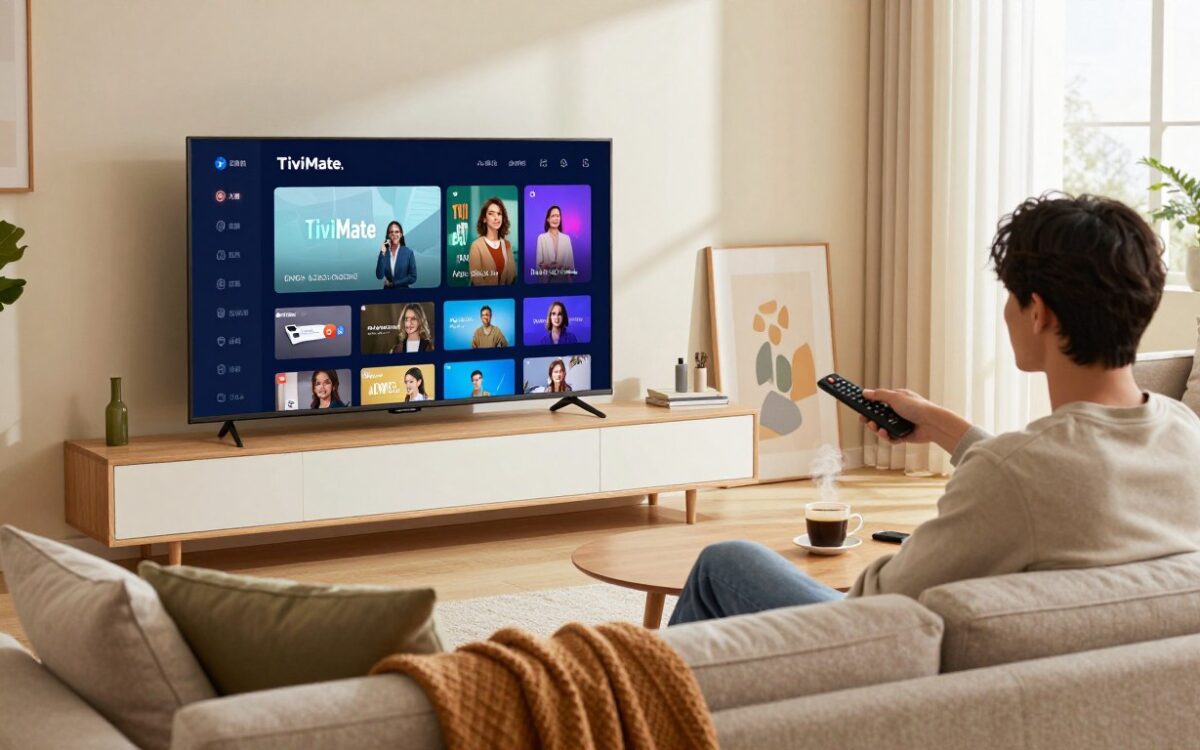
IPTV streaming has revolutionized the way we consume television content, offering a flexible and personalized viewing experience. At the heart of this revolution is TiviMate, a popular IPTV player known for its user-friendly interface and robust features.
To enjoy seamless IPTV streaming, setting up TiviMate on your device is crucial. Whether you’re using a Smart TV or an Android device, the process is straightforward and enhances your viewing experience. With IPTV streaming becoming increasingly popular, understanding how to set up your device correctly is key to unlocking a world of entertainment.
By following the right steps, you can ensure a smooth and enjoyable streaming experience. This article will guide you through the process, making it easy to get started with TiviMate.
What Is TiviMate and Why Choose It for IPTV Streaming
In the realm of IPTV streaming, TiviMate has emerged as a leading player, offering a seamless viewing experience. TiviMate is designed to provide users with an intuitive and feature-rich IPTV player that works across various Android devices, including Android TV.
Understanding TiviMate as an IPTV Player
TiviMate is an IPTV player that allows users to stream their favorite TV channels and on-demand content directly to their devices. It supports various formats, including M3U playlists and Xtream Codes, making it versatile for different IPTV services.

Key Features That Set TiviMate Apart
TiviMate boasts several features that make it a preferred choice for IPTV streaming:
- EPG Support: Offers an Electronic Program Guide for easy navigation.
- Customizable Interface: Allows users to personalize the app’s look and feel.
- Multi-Device Support: Works on Android smartphones, tablets, and Android TV devices.
- Reliable Streaming: Provides stable and buffering-free streaming with the right internet connection.
Who Should Use TiviMate
TiviMate is ideal for:
- IPTV subscribers looking for a user-friendly player.
- Android TV users seeking a robust IPTV solution.
- Viewers who want to access a wide range of channels and on-demand content.
By offering a combination of ease of use, feature richness, and compatibility, TiviMate stands out as a top IPTV player for Android devices.
System Requirements and Device Compatibility
Before installing TiviMate, it’s essential to ensure your device meets the necessary system requirements for smooth operation. Ensuring compatibility beforehand will help avoid potential issues during installation and use.
Minimum Android Version Requirements
TiviMate is designed to work on Android devices, and the minimum Android version required is Android 5.0 (Lollipop) or later. This ensures that the app can utilize the necessary features and APIs for stable performance.
- Android 5.0 or higher for basic functionality
- Android 7.0 or higher for enhanced features and stability
Compatible Smart TV Platforms
TiviMate is compatible with various Smart TV platforms, including:
- Android TV: Directly available on the Google Play Store
- Sony Android TVs: Compatible with the latest Android TV versions
For other Smart TV brands like Samsung and LG, there are alternative methods to install TiviMate, which will be discussed later.
Hardware Specifications for Smooth Performance
To ensure TiviMate runs smoothly, your device should meet the following hardware specifications:
- Processor: Dual-core processor or higher
- RAM: At least 2GB of RAM
- Storage: Minimum 8GB of free storage space
Meeting these specifications will provide a seamless viewing experience, especially when streaming high-definition content.

Essential Prerequisites Before Installation
Before diving into the installation process of TiviMate, there are several essential prerequisites to consider. Ensuring you meet these requirements will guarantee a smooth and successful installation.
Obtaining an IPTV Subscription
The first step is to secure an IPTV subscription. This subscription is crucial as it provides access to a vast library of channels and content. When choosing a provider, consider factors such as channel lineup, streaming quality, and customer support.
Understanding M3U URLs and Xtream Codes
To use TiviMate, you’ll need to understand M3U URLs and Xtream Codes. An M3U URL is a link to a playlist file that contains your IPTV channels. Xtream Codes, on the other hand, is an API that delivers your IPTV content. Familiarize yourself with these concepts to configure TiviMate correctly.
| Playlist Type | Description | Required Information |
|---|---|---|
| M3U URL | A link to your IPTV playlist | URL link provided by your IPTV service |
| Xtream Codes API | An API for IPTV content delivery | Username, Password, and Server URL |
Internet Speed Requirements
A stable internet connection is vital for uninterrupted streaming. A minimum internet speed of 5 Mbps is recommended for SD content, while 25 Mbps is suggested for HD content. Ensure your internet plan meets these requirements to avoid buffering issues.
Creating Your TiviMate Account
Although not always necessary, creating a TiviMate account can enhance your experience by allowing you to save your preferences and settings. To create an account, follow the in-app prompts or visit the TiviMate website.

Installing TiviMate on Android Smartphones and Tablets
Getting TiviMate up and running on your Android device involves a simple installation process through the Google Play Store. This process is straightforward and can be completed in just a few steps.
Accessing the Google Play Store
To begin, you need to open the Google Play Store on your Android device. This can be done by locating the Play Store icon on your home screen or in your app drawer.
Opening the Play Store Application
Tap the Google Play Store icon to launch the application. Ensure your device is connected to the internet.
Searching for TiviMate IPTV Player
Once inside the Play Store, use the search bar at the top to type “TiviMate IPTV Player.” Select the app from the search results to proceed to its download page.
Downloading and Installing the Application
Now that you’re on the TiviMate IPTV Player page, you can initiate the download and installation process.
Initiating the Download Process
Click the “Install” button on the TiviMate IPTV Player page. You may be prompted to grant permissions; review and accept them to continue.
Completing the Installation
Wait for the download and installation to complete. This should only take a few moments, depending on your internet connection.
Launching TiviMate for the First Time
After installation, you can launch TiviMate by tapping “Open” on the Play Store page or by finding the TiviMate icon on your device. You’re now ready to set up your IPTV streaming experience.

How to Set Up TiviMate on Android TV Boxes
Setting up TiviMate on your Android TV Box is a straightforward process that enhances your streaming experience. With TiviMate, you can access a wide range of IPTV channels and enjoy a more comprehensive viewing experience.
Navigating to the Play Store on Your Android TV Box
To start, you need to access the Play Store on your Android TV Box. This involves using your remote control to navigate through the interface.
Using Your Remote Control
Use your remote to scroll through the apps on your Android TV Box until you find the Play Store icon. Click on it to open the store.
Finding TiviMate in the Store
Once in the Play Store, use the search function to find TiviMate. Type “TiviMate” into the search bar, and select the app from the search results.
Installing TiviMate on Your Android TV Box
After finding TiviMate in the Play Store, follow these steps to install it.
Starting the Installation Process
Click the “Install” button to begin the installation process. Wait for the app to download and install on your device.
Granting Required Permissions
Once installed, open TiviMate and grant the necessary permissions to access your IPTV playlists and other required features.
Opening TiviMate on Your TV Screen
After installation, you can launch TiviMate from your app list. The app will guide you through the initial setup process.

| Step | Description |
|---|---|
| 1 | Navigate to the Play Store |
| 2 | Search for TiviMate |
| 3 | Install TiviMate |
| 4 | Grant necessary permissions |
| 5 | Launch TiviMate |
By following these steps, you can easily set up TiviMate on your Android TV Box and start enjoying your favorite IPTV channels on a bigger screen.
Setting Up TiviMate on Smart TV and Android Using the Downloader Method
When the Google Play Store is inaccessible, the Downloader method provides a viable workaround for TiviMate installation. This approach is particularly useful for devices that don’t have access to the Play Store or are not supported by it.
When the Downloader Method Is Necessary
The Downloader method is essential for devices that cannot directly access the Google Play Store. This includes certain Smart TVs and Android TV boxes that may not support the Play Store or have restrictions on installing apps from it.
Installing the Downloader Application
To begin, you need to install the Downloader application on your device. This involves two main steps:
Finding Downloader in Your App Store
First, locate the Downloader app in your device’s app store. It’s a popular tool used for downloading APK files from the internet.
Enabling Installation from Unknown Sources
Before you can install the Downloader app, you may need to enable the option to install apps from unknown sources in your device’s settings. This is a security feature that prevents unauthorized apps from being installed.

Downloading the TiviMate APK File
Once the Downloader app is installed, you can use it to download the TiviMate APK file.
Entering the TiviMate APK URL
Open the Downloader app, and enter the URL of the TiviMate APK file. This URL should be obtained from a trusted source, such as the official TiviMate website.
Waiting for the Download to Complete
After entering the URL, start the download process. Depending on your internet connection, this may take a few moments. Ensure that you have a stable connection to avoid any issues during the download.
Installing TiviMate from the APK
With the APK file downloaded, you can now proceed to install TiviMate.
Confirming the Installation
Your device may prompt you to confirm the installation of the app. Review the permissions required by TiviMate and confirm that you want to install it.
Opening the Newly Installed App
Once the installation is complete, you can open TiviMate directly from the Downloader app or find it on your device’s app list. You’re now ready to configure and start using TiviMate.
By following these steps, you can successfully install TiviMate using the Downloader method on devices that require this approach.
Complete Guide to Installing TiviMate on Amazon Fire TV Stick
TiviMate installation on Amazon Fire TV Stick is a simple process that opens up numerous streaming possibilities. With TiviMate, you can enjoy a wide range of IPTV channels directly on your TV. Here’s a step-by-step guide to help you through the installation process.
Preparing Your Fire TV Stick for Installation
Before you can install TiviMate, you need to prepare your Amazon Fire TV Stick. This involves adjusting some settings to allow the installation of apps from unknown sources.
Accessing Fire TV Settings
Start by navigating to the settings menu on your Fire TV Stick. You can do this using your remote control. Go to the home screen, scroll to the right, and select “Settings” from the menu to access the app for Fire TV.
Enabling Apps from Unknown Sources
Within the settings menu, navigate to “My Fire TV” or “Device” depending on your Fire TV Stick version. Then, select “Developer options.” Here, you’ll find the toggle to enable “Apps from Unknown Sources.” Turn this on. This step is crucial as TiviMate is not available on the Amazon App Store.
Using Downloader to Get TiviMate
With the settings adjusted, you’re ready to download and install TiviMate using the Downloader app.
Installing the Downloader App
Go back to the home screen and search for “Downloader” in the search bar. Select the Downloader app from the search results and click “Download” or “Get” to install it.
Entering the TiviMate Download URL
Once Downloader is installed, open it and click on the “Browser” tab. Enter the TiviMate APK download URL: https://example.com/tivimate.apk (replace with actual URL). Click “Go” to start the download.
Completing the TiviMate Installation
After downloading the APK file, you’ll be prompted to install it.
Running the APK Installer
Click “Install” to begin the installation process. Wait for the installation to complete. This should only take a few moments.
Launching TiviMate on Your Fire Stick
Once installed, you can launch TiviMate from the “Apps” section on your Fire TV Stick. You’ll be ready to add your IPTV playlist and start streaming.
By following these steps, you can successfully install TiviMate on your Amazon Fire TV Stick and enjoy a vast array of IPTV channels.
How to Use TiviMate on Samsung Smart TVs
Samsung Smart TV owners looking to use TiviMate will need to explore alternative methods since it’s not directly supported. TiviMate is a powerful IPTV player, but its compatibility issues with Samsung’s Tizen OS require creative workarounds.
Understanding Samsung Tizen Operating System Limitations
Samsung’s Tizen OS is designed for security and efficiency, but it restricts the installation of third-party apps not available in the Samsung App Store. This limitation affects TiviMate users who want to enjoy its features on their Samsung Smart TVs.
Why TiviMate Cannot Run Directly on Samsung TVs
TiviMate is primarily designed for Android devices, and Samsung’s Tizen OS is not compatible with Android APK files directly. This incompatibility means users cannot simply download and install TiviMate on their Samsung Smart TVs.
Best Solutions for Samsung TV Users
Despite the compatibility issues, there are effective workarounds for Samsung TV owners to use TiviMate. Here are some solutions:
Connecting an Android TV Box to Your Samsung TV
One of the most straightforward methods is to use an Android TV Box. By connecting an Android TV Box to your Samsung TV, you can install TiviMate and enjoy IPTV streaming. This method bypasses the Tizen OS limitations.
Using Amazon Fire TV Stick with Samsung TVs
Another option is to use an Amazon Fire TV Stick. This device can be plugged into your Samsung TV’s HDMI port, allowing you to access the Fire TV interface and install compatible IPTV apps for Smart TV or use screen mirroring with an Android device running TiviMate.
Screen Mirroring from Android Devices
If you have TiviMate installed on an Android device, you can use screen mirroring to display the content on your Samsung TV. This method requires both devices to be connected to the same Wi-Fi network.
Setting Up TiviMate on LG Smart TVs
Setting up TiviMate on LG Smart TVs can be a bit tricky due to compatibility issues. LG Smart TVs run on WebOS, which has limitations when it comes to installing certain apps directly.
LG WebOS Compatibility Issues
LG’s WebOS is designed to provide a seamless and secure user experience. However, this means that not all Android apps, including TiviMate, are available on the LG Content Store. The primary issue is that WebOS doesn’t support the Google Play Store, making it challenging to install Android apps directly on LG TVs.
Alternative Methods for LG TV Owners
Despite the compatibility issues, there are alternative methods to enjoy TiviMate on your LG Smart TV.
Using External Android Devices
One effective workaround is to use an external Android device, such as an Android TV Box or an Android smartphone/tablet. By connecting these devices to your LG TV, you can stream TiviMate through them.
Connecting Streaming Devices to LG TVs
Another option is to use dedicated streaming devices like Google Chromecast, Amazon Fire TV Stick, or Roku. These devices can be connected to your LG TV via HDMI, allowing you to access TiviMate and other streaming services.
Recommended Android TV Boxes for LG Televisions
If you prefer a more integrated solution, consider using an Android TV Box. Some top recommendations include:
- NVIDIA Shield TV: Offers high performance and access to the Google Play Store.
- Xiaomi Mi TV Box: Provides an affordable option with a wide range of features.
- Google Android TV Box: A straightforward and reliable choice for streaming.
By using one of these methods, you can enjoy TiviMate on your LG Smart TV without the hassle of direct installation.
Installing TiviMate on Sony Android TVs
Installing TiviMate on Sony Android TVs is a breeze, thanks to the intuitive interface of Sony’s Android TV platform. This section will guide you through the advantages of using Sony Android TVs and the step-by-step process of installing TiviMate.
Advantages of Sony’s Android TV Platform
Sony’s Android TV platform offers several advantages that make it an ideal choice for installing TiviMate. Firstly, the platform is user-friendly, allowing for easy navigation and installation of apps. Secondly, Sony Android TVs support the Google Play Store, providing access to a wide range of applications, including TiviMate. Lastly, Sony TVs are known for their high-quality display, enhancing the overall viewing experience.
Accessing Google Play Store on Sony Bravia TVs
To install TiviMate, you first need to access the Google Play Store on your Sony Bravia TV. Here’s how:
Navigating to the Apps Section
Using your Sony TV remote, navigate to the “Apps” section. This is usually found on the home screen.
Searching for TiviMate
Once in the “Apps” section, select the “Search” option and type “TiviMate” using the on-screen keyboard. Select the TiviMate app from the search results.
Installing and Launching TiviMate on Sony TVs
After selecting TiviMate from the search results, you will be directed to its Google Play Store page.
Completing the Installation Process
Click the “Install” button to download and install TiviMate on your Sony TV. Wait for the installation to complete.
Opening TiviMate on Your Sony Television
Once installed, you can launch TiviMate from the “Apps” section or from the “My Apps” section if available. You can now configure TiviMate with your IPTV details.
| Step | Description |
|---|---|
| 1 | Navigate to the “Apps” section on your Sony TV. |
| 2 | Search for “TiviMate” in the Google Play Store. |
| 3 | Install TiviMate. |
| 4 | Launch TiviMate from the “Apps” or “My Apps” section. |
Adding Your IPTV Playlist to TiviMate
Now that you have TiviMate installed, it’s time to add your IPTV playlist. This step is crucial to start streaming your favorite channels and enjoying the full potential of TiviMate. In this section, we will guide you through the process of adding your IPTV playlist using both the M3U URL method and Xtream Codes API.
Launching TiviMate and Accessing the Add Playlist Menu
To begin, launch TiviMate on your device. Once the app is open, navigate to the menu and select the option to add a new playlist. This will take you to a screen where you can choose between different methods to add your IPTV playlist.
Adding Playlist Using M3U URL Method
The M3U URL method is one of the most common ways to add an IPTV playlist to TiviMate. Here’s how to do it:
Selecting the M3U URL Option
On the add playlist screen, select the option for M3U URL. This will prompt you to enter the URL of your IPTV playlist.
Entering Your Playlist URL
Carefully enter the M3U URL provided by your IPTV service provider. Ensure that the URL is correct to avoid any issues with channel loading.
Naming Your Playlist
After entering the URL, you will be asked to name your playlist. Choose a name that is easy to identify, especially if you plan to add multiple playlists in the future.
Adding Playlist Using Xtream Codes API
If your IPTV service provider uses Xtream Codes API, you can add your playlist using this method. Here’s how:
Choosing the Xtream Codes Login Option
On the add playlist screen, select the Xtream Codes login option. This will prompt you to enter your server details and credentials.
Entering Server Details and Credentials
Enter the server URL, username, and password provided by your IPTV service provider. Make sure to enter the details correctly to avoid authentication errors.
Verifying That Channels Load Correctly
After adding your IPTV playlist, it’s essential to verify that the channels load correctly. Navigate through the channels to ensure that they are working as expected. If you encounter any issues, double-check your playlist URL or Xtream Codes credentials.
By following these steps, you should be able to successfully add your IPTV playlist to TiviMate and start enjoying your favorite channels.
Configuring TiviMate Settings for the Best Experience
For an optimal TiviMate experience, it’s essential to customize its settings according to your preferences. This involves tweaking various options to ensure a seamless and enjoyable IPTV streaming experience.
Customizing the User Interface Layout
The user interface of TiviMate can be personalized to suit your viewing habits. This includes changing the theme and adjusting the grid size and channel list view.
Choosing Your Preferred Theme
TiviMate offers different themes that can change the look and feel of the application. To choose a theme, navigate to the settings menu, select “UI Settings,” and pick your preferred theme from the available options.
Adjusting Grid Size and Channel List View
You can adjust the grid size to display more or fewer channels at a glance. Additionally, you can switch between different channel list views to find the one that works best for you.
Setting Up the Electronic Program Guide
The Electronic Program Guide (EPG) is a crucial feature that helps you navigate through available channels and their programming schedules.
Adding EPG Sources
To add an EPG source, go to the EPG settings, select “Add EPG Source,” and enter the URL of your EPG provider. This will enable TiviMate to fetch and display the program guide.
Configuring EPG Update Schedule
You can schedule how often TiviMate updates the EPG data. This ensures that you have the most current program information without unnecessary updates.
Optimizing Playback Settings
Playback settings are critical for a smooth streaming experience. TiviMate allows you to customize these settings to match your internet connection and device capabilities.
Selecting Your Preferred Video Player
TiviMate allows you to choose between different video players. You can select the one that performs best on your device.
Adjusting Buffer Size
Adjusting the buffer size can help reduce buffering issues. A larger buffer size can provide a more stable stream but may introduce a delay.
Enabling Hardware Acceleration
Enabling hardware acceleration can improve playback performance by offloading processing to your device’s hardware. This can result in smoother video playback.
Configuring Parental Controls and PIN Protection
For added security and to restrict access to certain content, TiviMate allows you to set up parental controls and PIN protection.
By configuring these settings, you can ensure a more personalized and secure viewing experience for all users.
Exploring TiviMate Premium Features and Subscription
Unlock the full potential of TiviMate by upgrading to its premium version, designed to elevate your IPTV streaming experience. With TiviMate Premium, users can enjoy a more comprehensive and enhanced viewing experience.
Differences Between Free and Premium Versions
The free version of TiviMate offers a robust IPTV streaming experience, but upgrading to Premium unlocks additional features that can significantly enhance your interaction with the platform. The main differences lie in the advanced features and increased flexibility offered by the premium version.
Premium Features Worth Considering
TiviMate Premium is packed with features that make it a worthwhile upgrade. Some of the key features include:
Multiple Playlists Support
With TiviMate Premium, you can manage multiple IPTV playlists simultaneously, making it ideal for users with subscriptions to different services.
Unlimited EPG Sources
Premium users can access unlimited Electronic Program Guide (EPG) sources, ensuring that you have the most comprehensive and up-to-date program listings.
Catch-Up and Recording Capabilities
Enjoy the flexibility to catch up on missed shows or record your favorite programs with the built-in catch-up and recording features.
No Advertisements
One of the most appreciated benefits of TiviMate Premium is the ad-free experience, allowing you to enjoy your favorite shows without interruptions.
| Feature | Free Version | Premium Version |
|---|---|---|
| Multiple Playlists | Limited | Supported |
| EPG Sources | Limited | Unlimited |
| Catch-Up/Recording | Not Available | Available |
| Advertisements | Present | None |
How to Purchase and Activate TiviMate Premium
Upgrading to TiviMate Premium is straightforward. Here’s a step-by-step guide:
Accessing the Premium Upgrade Option
Navigate to the settings or preferences section within the TiviMate app to find the upgrade option.
Completing the Payment Process
Follow the prompts to complete the payment process. TiviMate accepts various payment methods for your convenience.
Activating Premium on Multiple Devices
Once you’ve purchased TiviMate Premium, you can activate it on multiple devices using the same account credentials, making it easy to enjoy premium features across your devices.
Troubleshooting Common TiviMate Installation and Setup Issues
Troubleshooting TiviMate installation and setup issues can be straightforward with the right guidance. Whether you’re experiencing difficulties with installation, playlist loading, or streaming quality, this section aims to provide solutions to common problems.
Resolving Installation Problems
Installation issues can arise due to various reasons, including compatibility problems or incorrect installation procedures.
App Not Installing on Your Device
Ensure your device meets the minimum Android version requirements and has sufficient storage space. Try clearing the Google Play Store cache and data or check if your device is compatible with the app.
TiviMate Crashing on Startup
This could be due to an outdated version or corrupted data. Try updating TiviMate to the latest version or clearing the app’s cache and data.
Parse Error During APK Installation
A parse error typically occurs due to a corrupted APK file or incompatibility with your device’s Android version. Ensure you’re downloading the APK from a trusted source and check your device’s compatibility.
Fixing Playlist and Channel Issues
Issues with playlists and channels can be frustrating, but there are several steps you can take to resolve them.
Playlist Not Loading or Showing Errors
Verify that your M3U URL or Xtream Codes API details are correct. Check your internet connection and ensure it’s stable.
Channels Not Playing or Showing Black Screen
This could be due to a weak internet connection or issues with the channel link. Try switching to a different channel or checking your internet speed.
EPG Not Displaying Program Information
Ensure that the EPG data is correctly configured in TiviMate settings and that your IPTV provider supports EPG.
Addressing Buffering and Streaming Problems
Buffering and poor streaming quality can significantly affect your viewing experience.
Constant Buffering During Playback
Check your internet speed to ensure it meets the requirements for smooth streaming. Consider upgrading your plan if necessary.
Poor Video Quality
Adjust the video quality settings within TiviMate to match your internet bandwidth. Lowering the resolution can help improve streaming quality.
Solving Login and Authentication Errors
Login issues can prevent access to your IPTV service.
Double-check your username and password, and ensure your subscription is active. If issues persist, contact your IPTV provider for assistance.
Tips and Best Practices for Optimizing TiviMate
Optimizing TiviMate can significantly enhance your IPTV streaming experience, making it more enjoyable and user-friendly. By implementing a few simple strategies, you can maximize the app’s potential and enjoy a more streamlined viewing experience.
Organizing Your Channels Effectively
Effective channel organization is key to a satisfying IPTV experience. TiviMate allows you to customize your channel list to suit your preferences.
Creating Custom Channel Groups
You can create custom groups for different types of channels, such as sports, news, or entertainment. This makes it easier to find your favorite channels quickly.
Setting Up Favourite Channels
Marking channels as favorites allows for quick access. You can add frequently watched channels to a favorites list for convenience.
Hiding Unwanted Channels
If there are channels you never watch, you can hide them from your list. This declutters your channel lineup and makes navigation simpler.
Mastering Remote Control and Navigation
Navigating TiviMate efficiently is crucial for a smooth user experience. Understanding how to use your remote control effectively can make a big difference.
Essential Keyboard Shortcuts
Familiarize yourself with TiviMate’s keyboard shortcuts to navigate the app more efficiently. These shortcuts can save you time and enhance your overall experience.
Quick Access Features
Utilize TiviMate’s quick access features to jump to different sections of the app instantly. This feature is particularly useful for accessing your favorite channels or EPG quickly.
Managing Storage and Cache for Better Performance
Proper storage and cache management are vital for maintaining TiviMate’s performance. Regular maintenance ensures the app runs smoothly.
Clearing Cache Regularly
Clearing the cache regularly can resolve playback issues and free up storage space. It’s a simple maintenance task that can significantly improve performance.
Managing Downloaded Content
Manage your downloaded content wisely. Remove content you’re no longer interested in to free up space on your device.
| Task | Benefit |
|---|---|
| Clearing Cache | Resolves playback issues, frees storage |
| Managing Downloads | Frees up device storage, improves performance |
Keeping TiviMate Updated
Regularly updating TiviMate ensures you have the latest features and bug fixes. This is crucial for maintaining a high-quality streaming experience.
By following these tips and best practices, you can optimize TiviMate to suit your viewing habits, ensuring a more enjoyable and hassle-free IPTV experience.
Conclusion
Setting up TiviMate on your Smart TV or Android devices is a straightforward process that opens up a world of IPTV streaming possibilities. By following the steps outlined in this article, you can enjoy seamless access to your favorite channels and content.
TiviMate’s versatility and feature-rich interface make it an ideal choice for IPTV enthusiasts. Whether you’re using an Android TV box, a Smart TV, or a mobile device, TiviMate provides a consistent and high-quality viewing experience.
As you’ve seen, configuring TiviMate involves obtaining an IPTV subscription, understanding M3U URLs and Xtream Codes, and optimizing your device’s internet connection. With TiviMate, you can customize your viewing experience, organize your channels effectively, and enjoy a robust IPTV streaming service.
Now that you’ve successfully set up TiviMate, explore its full potential and discover the vast possibilities of IPTV streaming on your Smart TV and Android devices.
